
All Images
Setup Instructions
Introduction to Git & GitLab
Figure 1

Figure 2
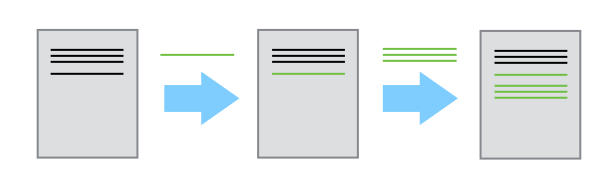
Changes Are Saved Sequentially
Figure 3
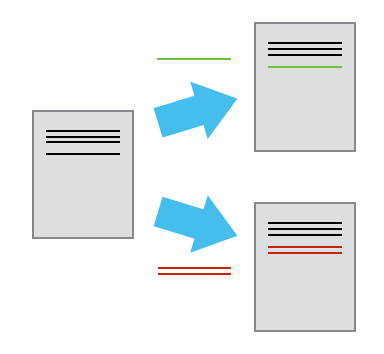
Different Versions Can be Saved
Figure 4
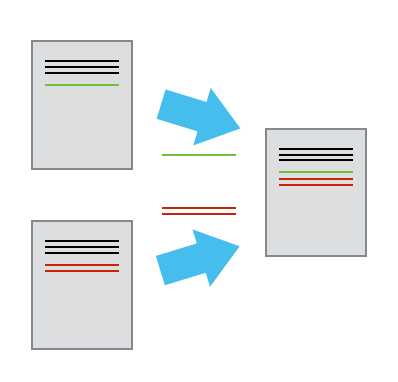
Multiple Versions Can be Merged
Create a GitLab Repository
Figure 1
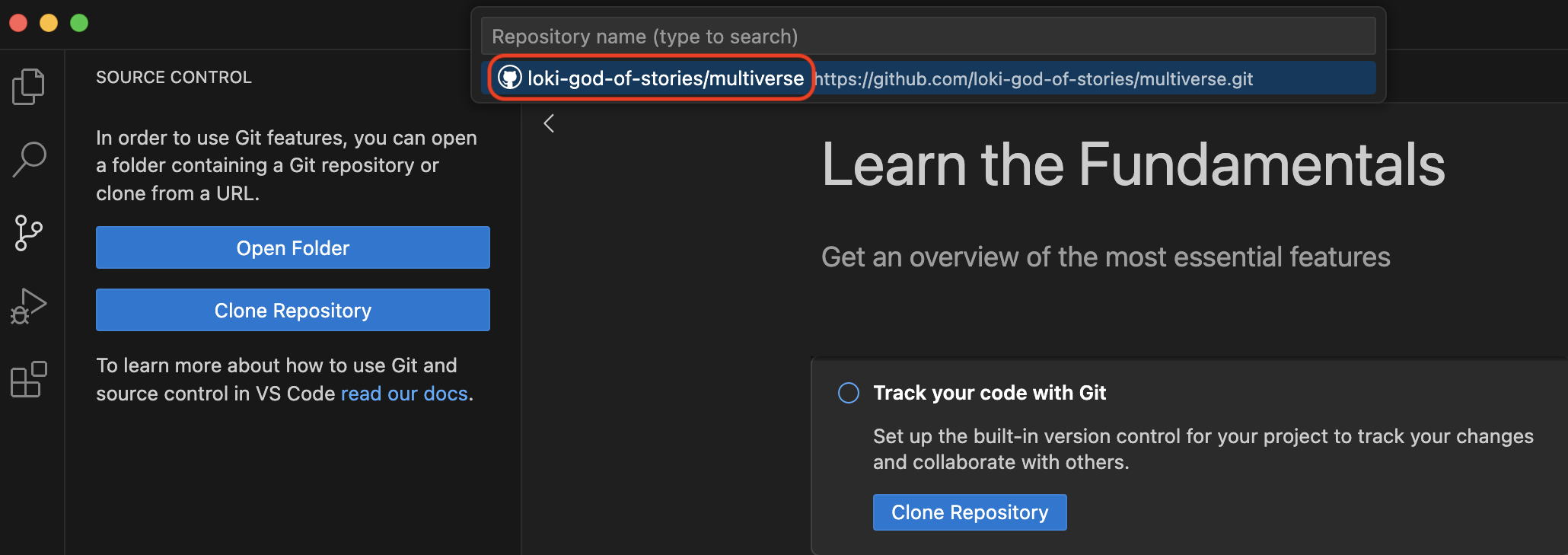
Clone your multiverse repo via VS Code
Figure 2
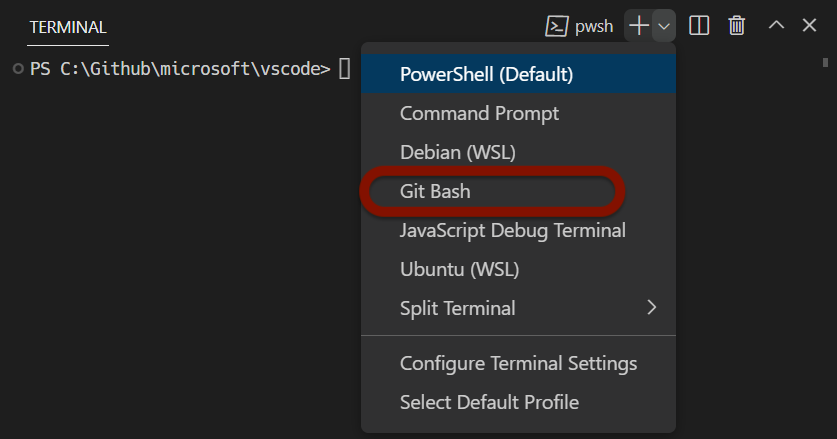
Open a GitBash terminal if on Windows
Figure 3
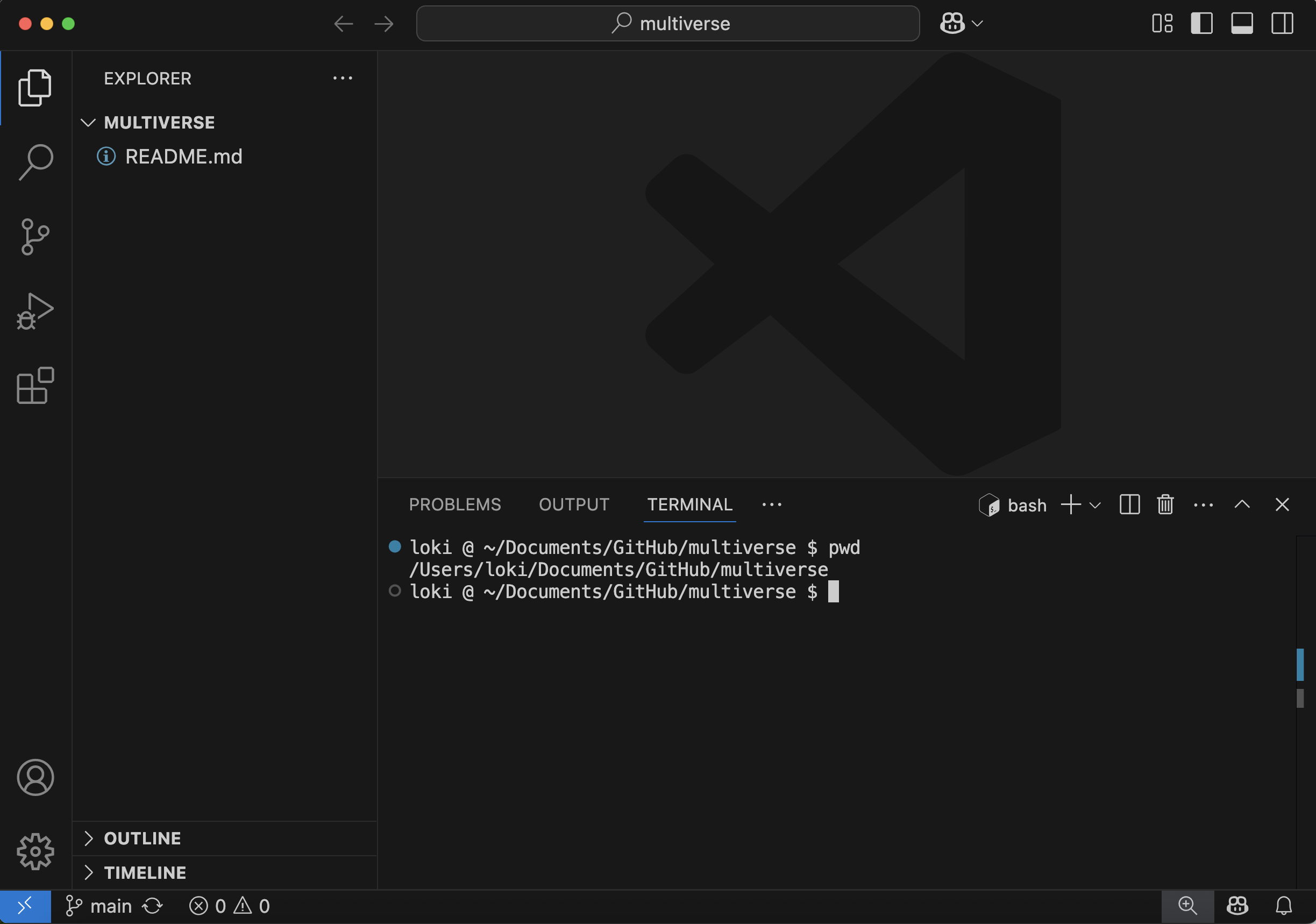
Ready to begin
Setup Git Configs
Tracking Changes
Figure 1
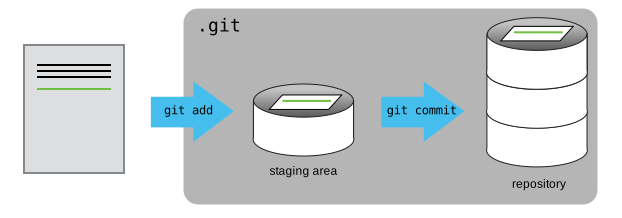
The Git Staging Area
Pushing changes to GitLab
Branches
Merge Requests
[Optional] Resolving Conflicts
Figure 1
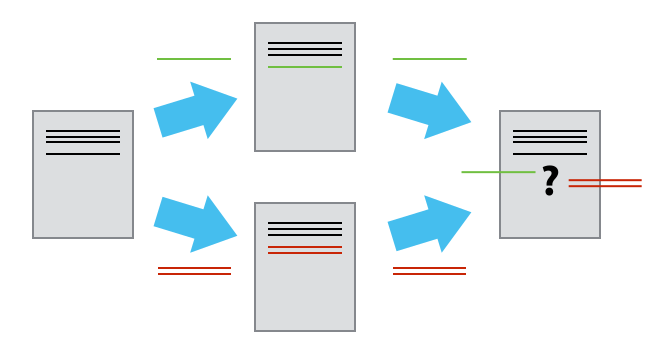
The Conflicting Changes
Figure 2
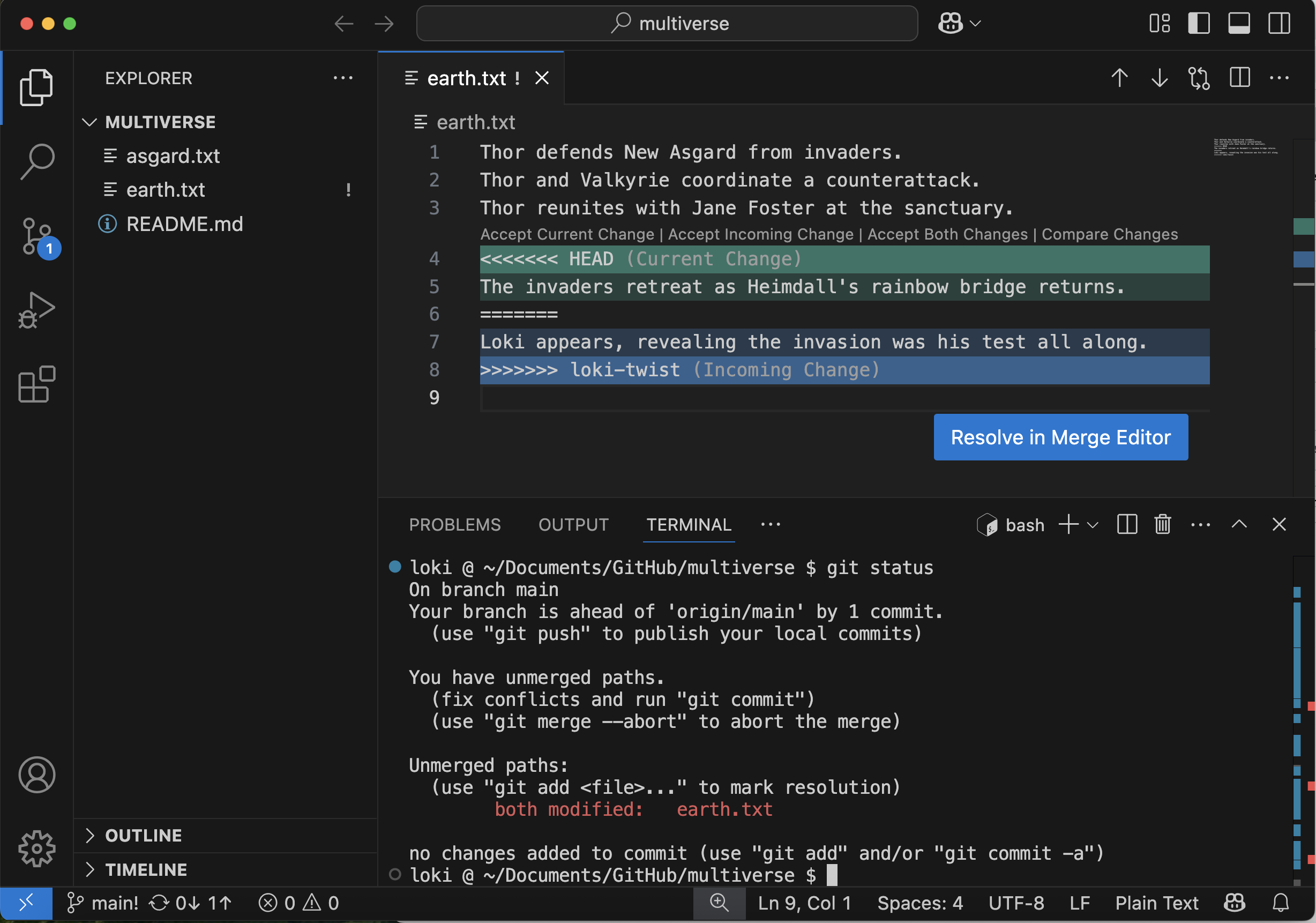
Merge conflict in earth.txt
Figure 3
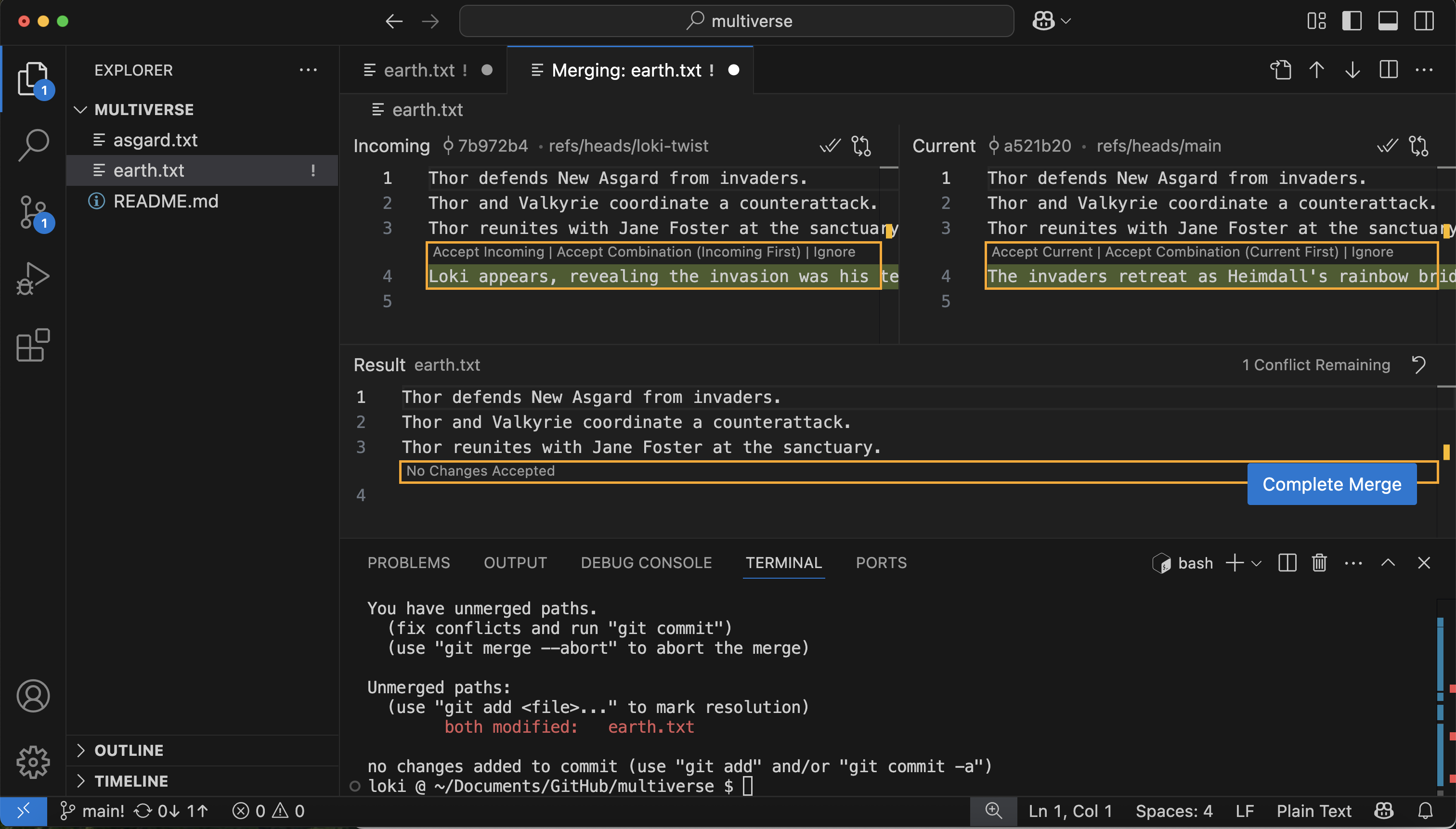
Resolving the merge conflict with the merge
editor
Figure 4
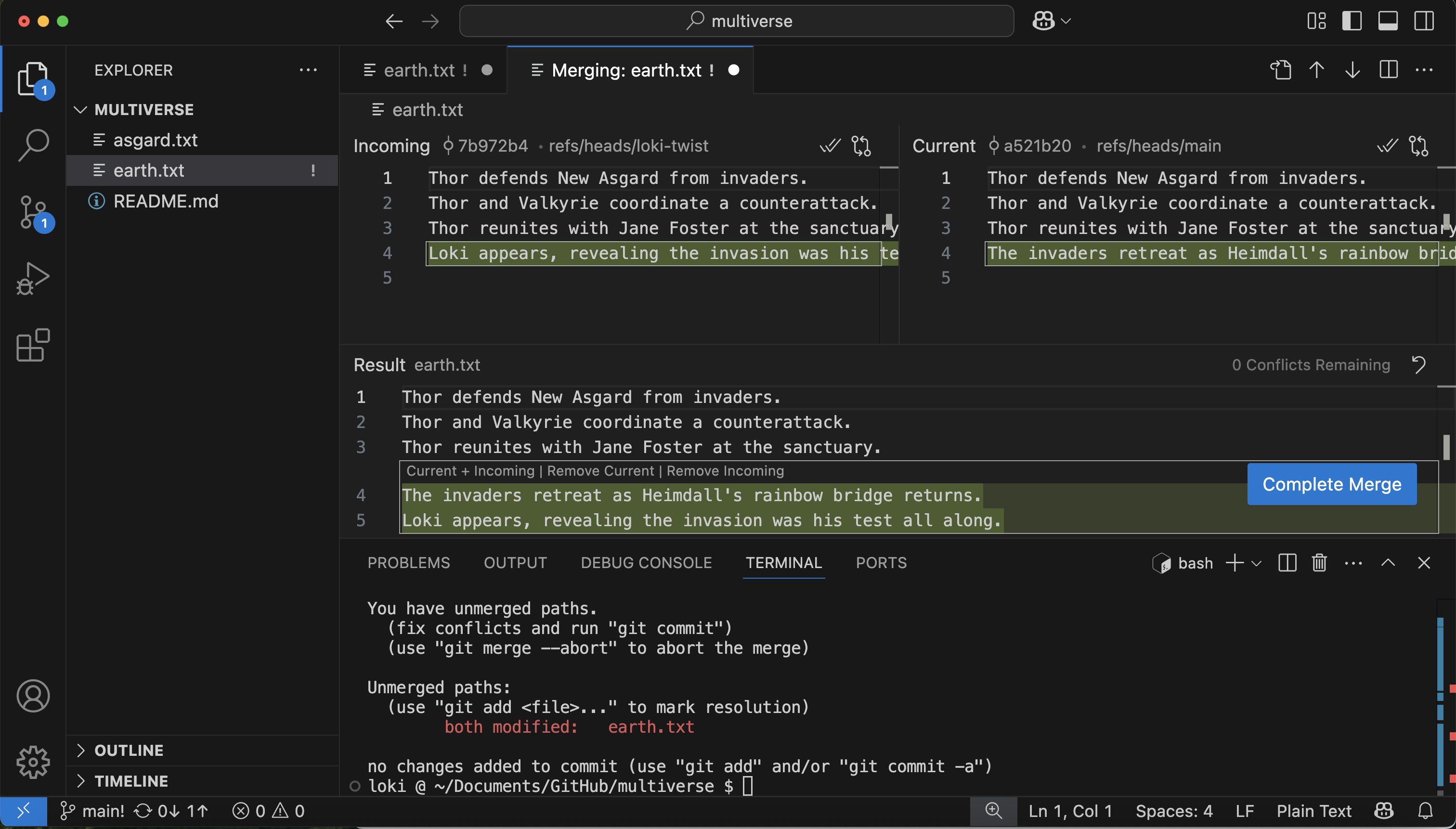
The bottom pane contains the resolved earth.txt
contents